
Check pronunciation before exporting
Listen for wrong pronunciations, omitted words and awkward emphasis while the text is still available in the tool that generated the voice. Those problems are usually better addressed in the source text or voice settings. Cutting a waveform can shorten a pause, but it does not reliably correct a word that was spoken incorrectly.
Export a supported audio file from the voice tool. If you are producing several narration sections, give them meaningful filenames and keep the associated text. This makes a later correction easier than searching through one long, unnamed recording.
Trim long pauses
In the editor, listen to one paragraph at a time. Remove excessive waiting at the beginning and end, and shorten pauses that interrupt the meaning. Preserve enough space between sentences for a listener to follow the thought. Small fades can soften edited boundaries. Avoid processing simply to make the waveform look fuller; intelligibility and comfortable pacing are more useful goals.
Step-By-Step Instructions
- 1
Generate and export the voice
Use your chosen text-to-speech tool to create the narration. Save its audio output locally in a format the editor can open.
- 2
Listen to the narration
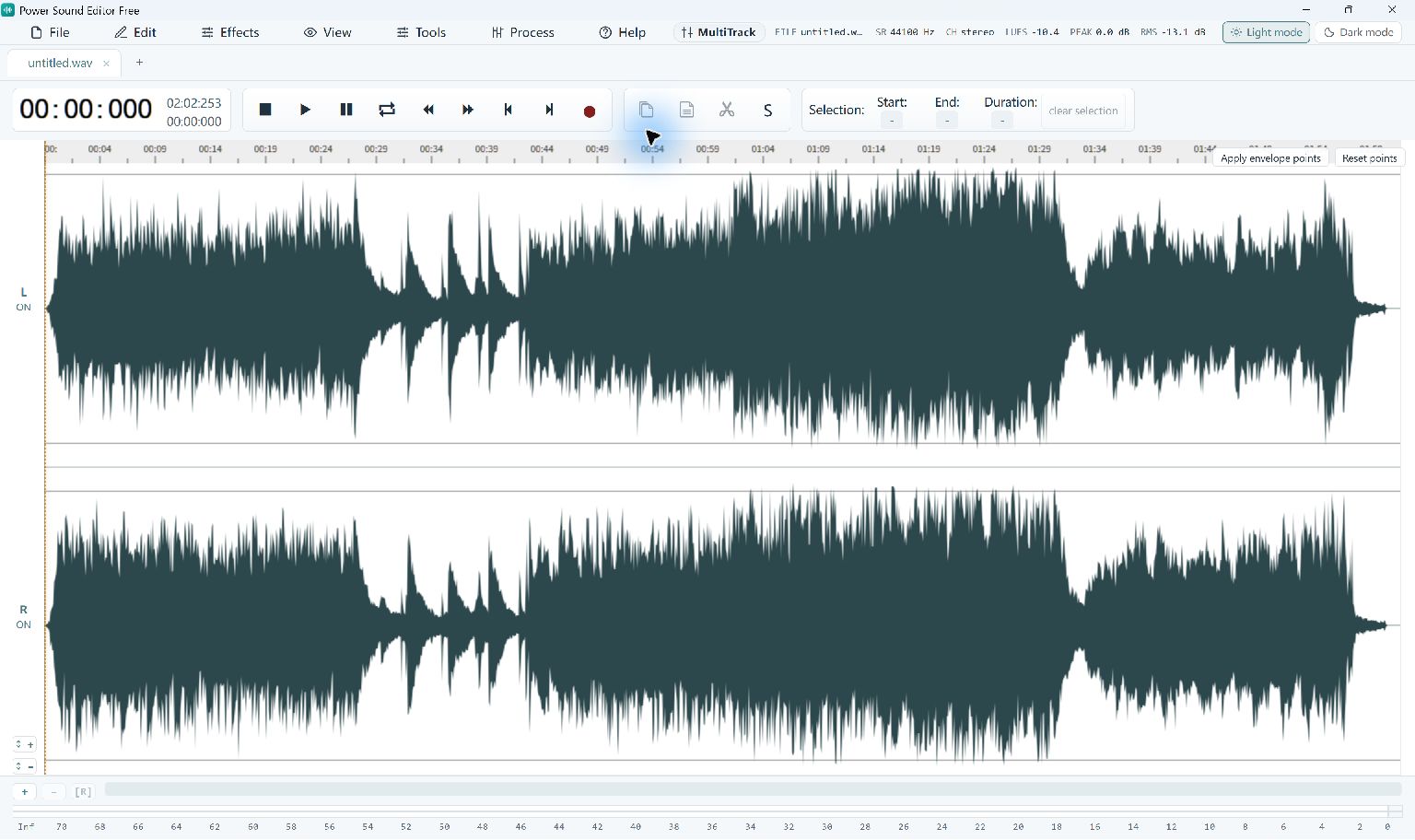
Open the file in Power Sound Editor Free. Listen for long pauses, repeated phrases and uneven sections while following the script.
- 3
Edit the timing
Select unwanted silence or repeated material and remove it. Replay each join to make sure the spoken sentence remains complete.
- 4
Export the narration audio
Use Convert / Export to create the format needed by your video, presentation or audio player. Listen once to the saved file before delivery.
Common Questions
Where do I type text for the editor to read aloud?
There is no text-to-speech input in this release. Generate the spoken file elsewhere, then open that audio here.
Can I use it for my own recorded narration instead?
Yes. Record a microphone through Tools → Record or open an existing voice recording and follow the same editing workflow.