
Check the video format and codec
MP4 describes a container. The video and audio inside it still use particular codecs, and a player may support only some combinations. MP4 with H.264 video is a useful starting point for broad compatibility, but the device's own specifications are the final guide.
Resolution and frame rate also matter. Keep them close to the source unless the destination needs something smaller. Enlarging a low-resolution clip creates more pixels to encode without recovering detail that was never recorded.
Test a short video first
A short test reveals problems much sooner than an overnight batch. Check the image, dialogue synchronization and any required subtitle behavior on the intended player. Testing only in the converter leaves the destination unverified.
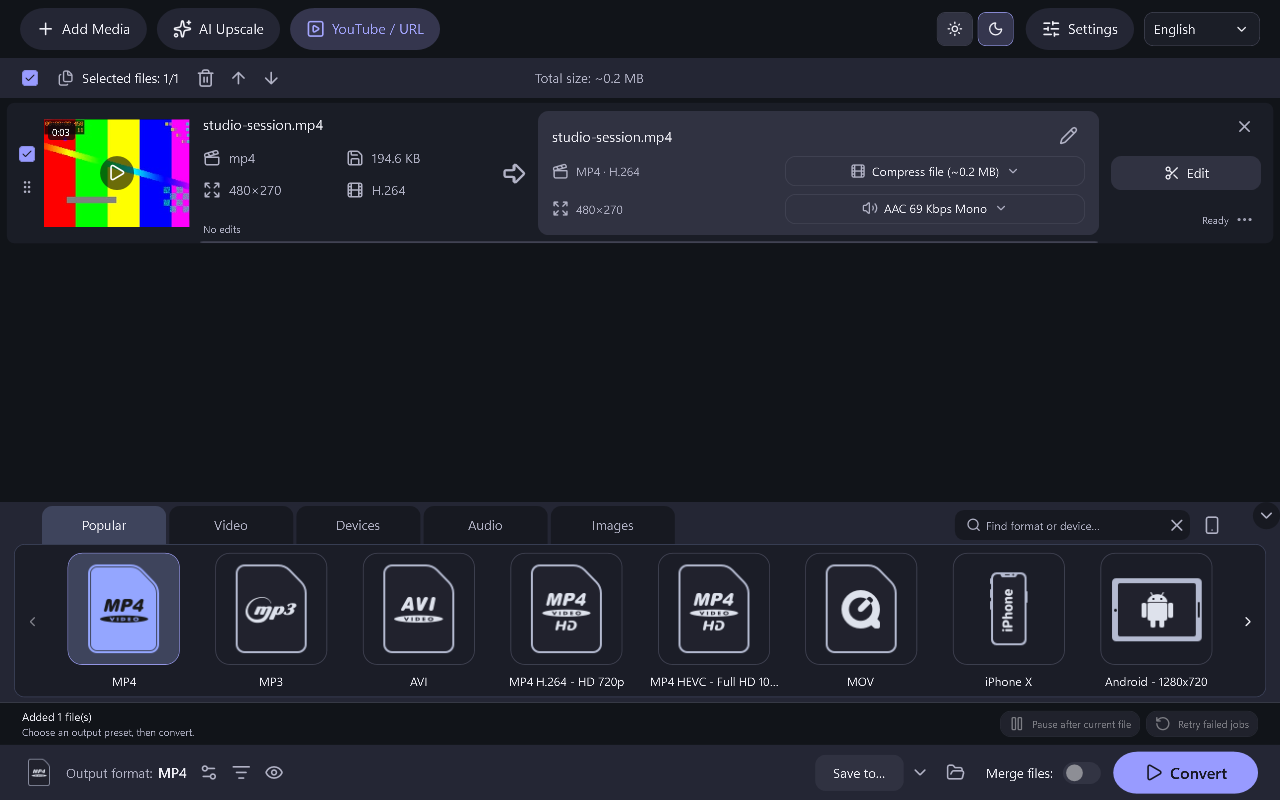
Power Movie Switch includes video presets, output settings and a file queue. Its conversion features are free, and the new output can be saved separately from your original recording.
Step-By-Step Instructions
- 1
Add your video
Use Add video to load your recording. Confirm the duration and select the item you want to configure.
- 2
Choose a format or device preset
Select a video format or device preset. Review resolution, frame rate and audio settings; avoid increasing them simply because larger numbers are available.
- 3
Convert and test playback
Choose an output directory, run conversion and copy the result to the destination device. Keep the original if you may need another format later.
Common Questions
Should I always choose the newest codec?
No. A newer codec may make smaller files but can be harder for older devices to decode.
Can I convert without changing the original?
Yes. Use a separate output directory. The source remains available for another conversion or a higher-quality archive.