
Group videos that need the same format
Separate clips intended for a phone from those intended for an editing project. They may need different dimensions, audio choices or subtitle treatment. A shared output format works best when the files have a shared purpose.
Check filenames before you begin. Two camera cards can both contain a file called clip001.mp4. Use clear source folders and an identifiable output location, then review how the application names each result rather than assuming every filename will be unique.
Review each file’s output settings
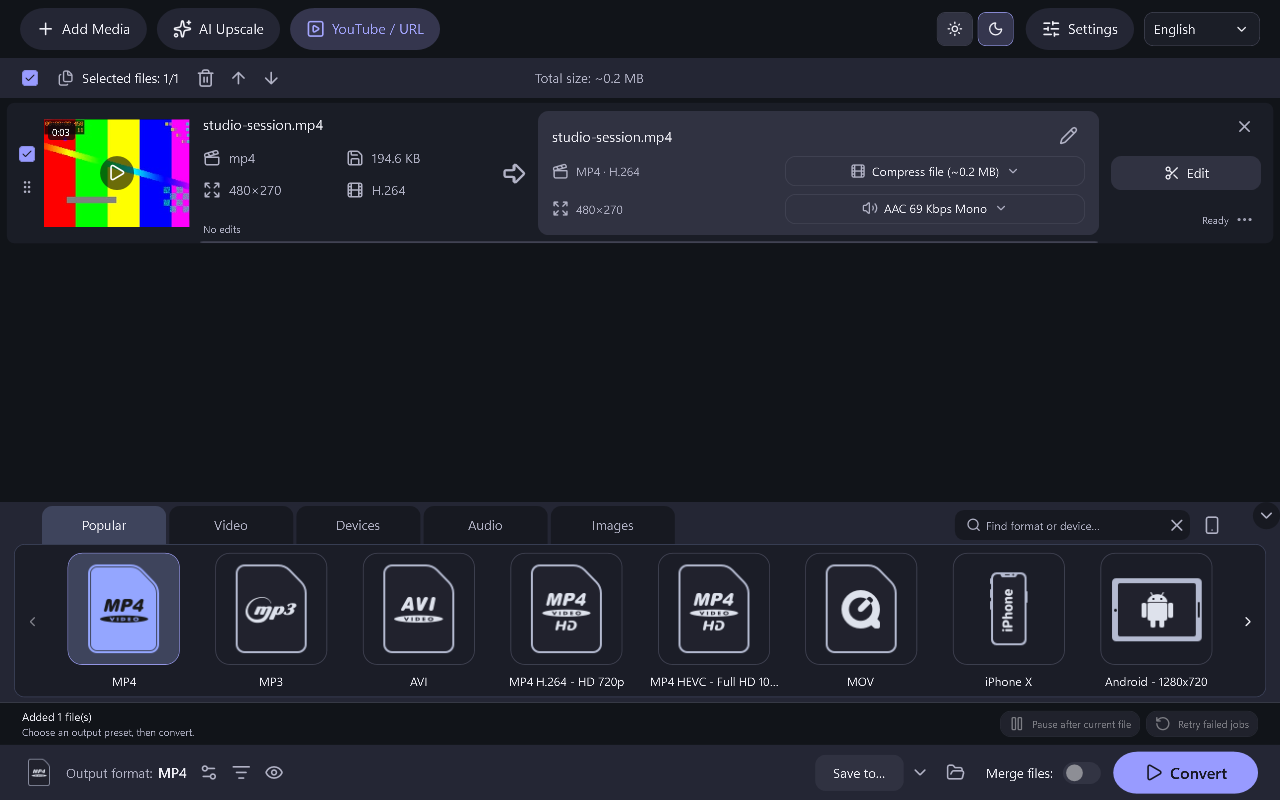
Power Movie Switch supports multiple input files and per-item settings. Inspect the selected preset and any overrides, especially after changing settings halfway through preparing a collection. A file with different source properties may need its own output choices.
Leave enough storage for the outputs and keep the computer available during the job. A batch of smaller video files can still require considerable disk space when you choose a high bitrate or a less compressed format.
Step-By-Step Instructions
- 1
Test one video first
Convert a clip from the collection first and play the result on the intended device. Confirm sound, image shape and subtitles before adding the rest.
- 2
Add and review the batch
Import the remaining videos together or add their folder. Review the queue, remove unwanted items and choose the destination for the new files.
- 3
Convert the batch and check the files
Let the queue process, then check completed outputs and any reported failures individually. Retain the originals until the whole batch has been verified.
Common Questions
Does every file have to use identical settings?
The application provides per-item output controls. Check overrides when some recordings need different treatment.
What should I do with one failed item?
Read its reported error and test that source separately. There is no need to assume that every other completed output has failed.