
Start with a short video
Use a short local video that you know plays correctly. A damaged source or an unfamiliar download introduces extra questions before you have learned the basic workflow. Create an output folder with a recognizable name and make sure the drive has space.
Choose a destination you can test. That might be the same Windows video player, a family member's phone or a presentation computer. Having a specific destination makes the format choice easier than trying to find a universally perfect preset.
Use a preset, then adjust if needed
Begin with a suitable video preset, then change resolution or bitrate only when you have a requirement such as a size limit or an older player. You can return to the original and make another output if the first choice is unsuitable.
The application is completely free. Trial restrictions do not determine which conversion controls you can use, but the source file, chosen codec and computer hardware still determine what can be processed successfully.
Step-By-Step Instructions
- 1
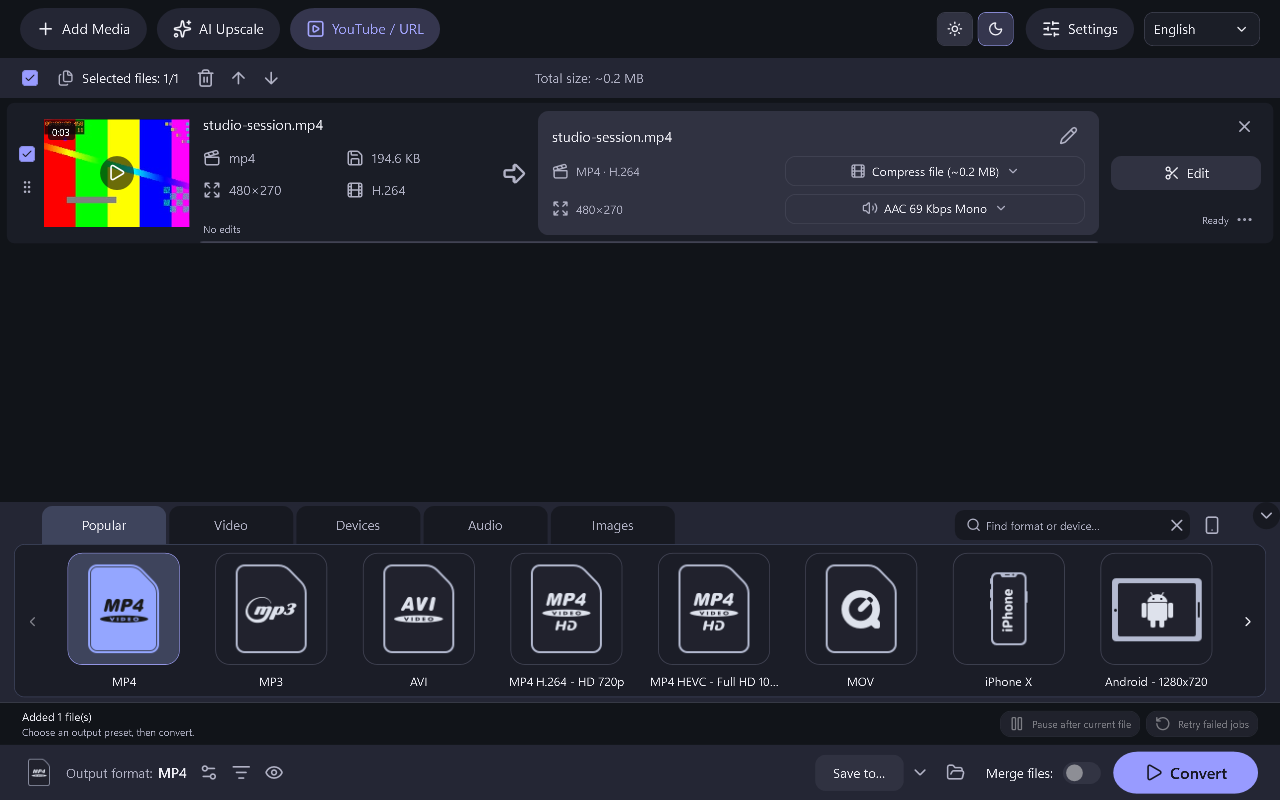
Add one video
Choose Add video and select your test file. Wait for the application to read its details, then confirm the queue contains the intended recording.
- 2
Choose a preset and destination
Select a familiar output such as MP4 with H.264 when it suits your player. Point the output folder at the location you prepared.
- 3
Convert and play the new file
Start the job. When it finishes, open the new file from the output folder and check both picture and sound in your normal player.
Common Questions
Do I have to change every setting?
No. A suitable preset is the starting point; adjust controls when a specific playback or size requirement calls for it.
What if the exported file is too large?
Keep the original, then try a smaller resolution or a more suitable bitrate. Compare a short test before converting the full recording again.