
Cut out mistakes and unwanted silence
Play the recording and find the parts you want to keep. Cut long silences, mistakes or interruptions before adding effects. This makes it easier to hear whether the remaining audio flows naturally.
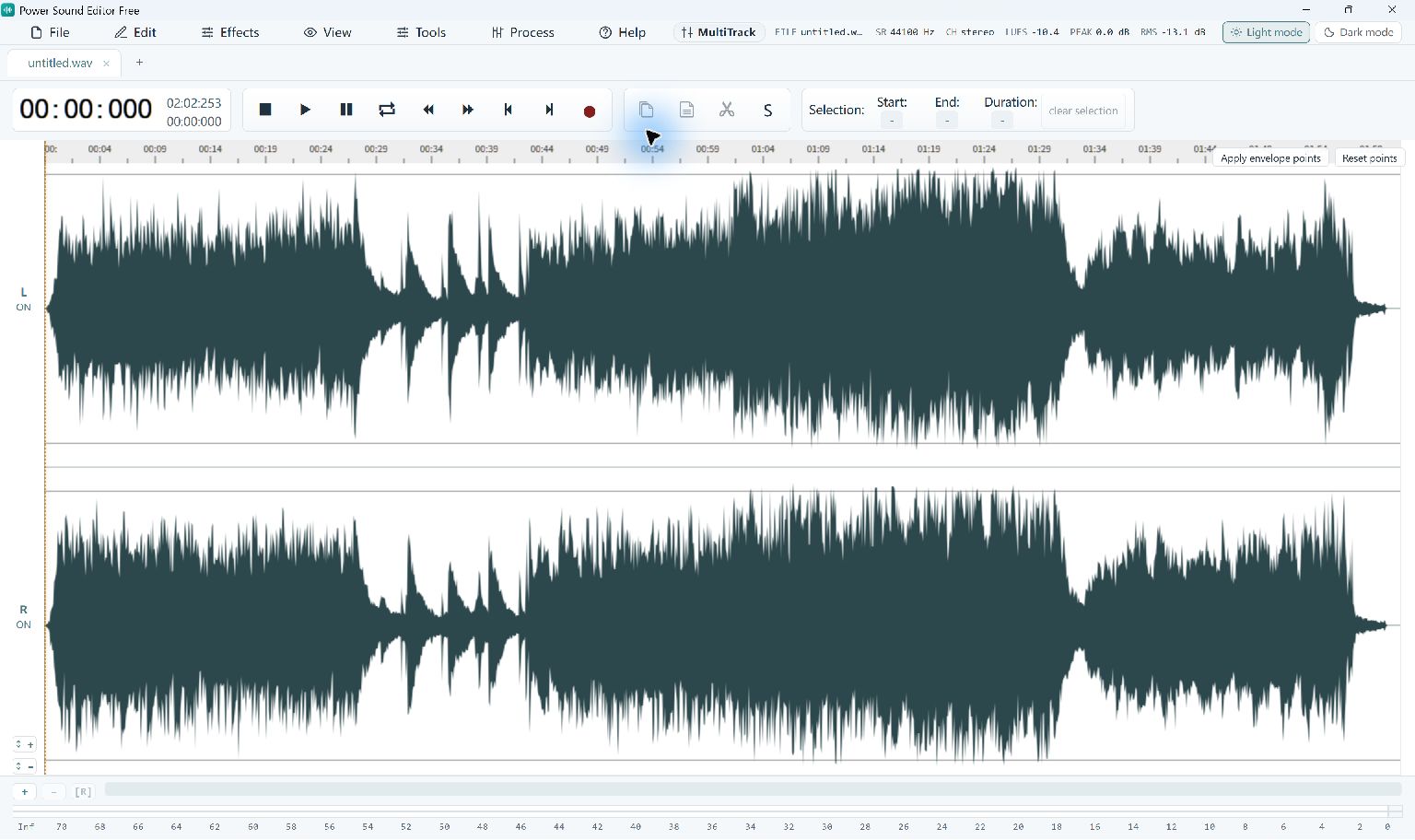
Zoom in around the part you want to remove and select it in the waveform. After cutting, play a few seconds before and after the edit. If a word or note is cut short, use Undo and adjust the selection.
Save your project and export an audio file
Save a project if you want to continue editing later. To play or share the recording, export a separate audio file. Use a new filename so you can easily tell the edited version from the original.
Step-By-Step Instructions
- 1
Open or record audio
Use File → Open to load a local audio file. Alternatively, use Tools → Record for a new microphone or system-audio recording.
- 2
Cut unwanted audio
Select the interruption and use Cut. Replay a few seconds on both sides of the edit and undo if the join sounds abrupt.
- 3
Add a fade or adjust the tone
Use Fade Out for an abrupt ending or Graphic EQ to adjust the tone. Play the edited passage and use Undo if the change does not help.
- 4
Export as MP3 or WAV
Open File → Convert / Export, choose MP3, WAV or another supported format, and select a folder. Play the saved file to check the result.
Common Questions
Is a license key needed for MP3 export?
No. The current Power Sound Editor Free build enables its supported export formats without payment or registration.
What does the editor need to display its interface?
The Windows application uses Microsoft Edge WebView2 Runtime. Setup checks for that runtime before installing the editor.