
Check storage space and disc condition
A disc image can be several gigabytes because it represents disc content rather than a compressed phone video. Choose a destination with enough free space and a filesystem that can store the resulting file. Avoid placing the only copy on an unreliable removable drive.
Check the original disc before copying. Fingerprints, scratches or an unstable USB connection can cause read errors. A clean source and a reliable drive are more useful than repeatedly forcing a damaged sector to read.
Save a disc image, then write another DVD
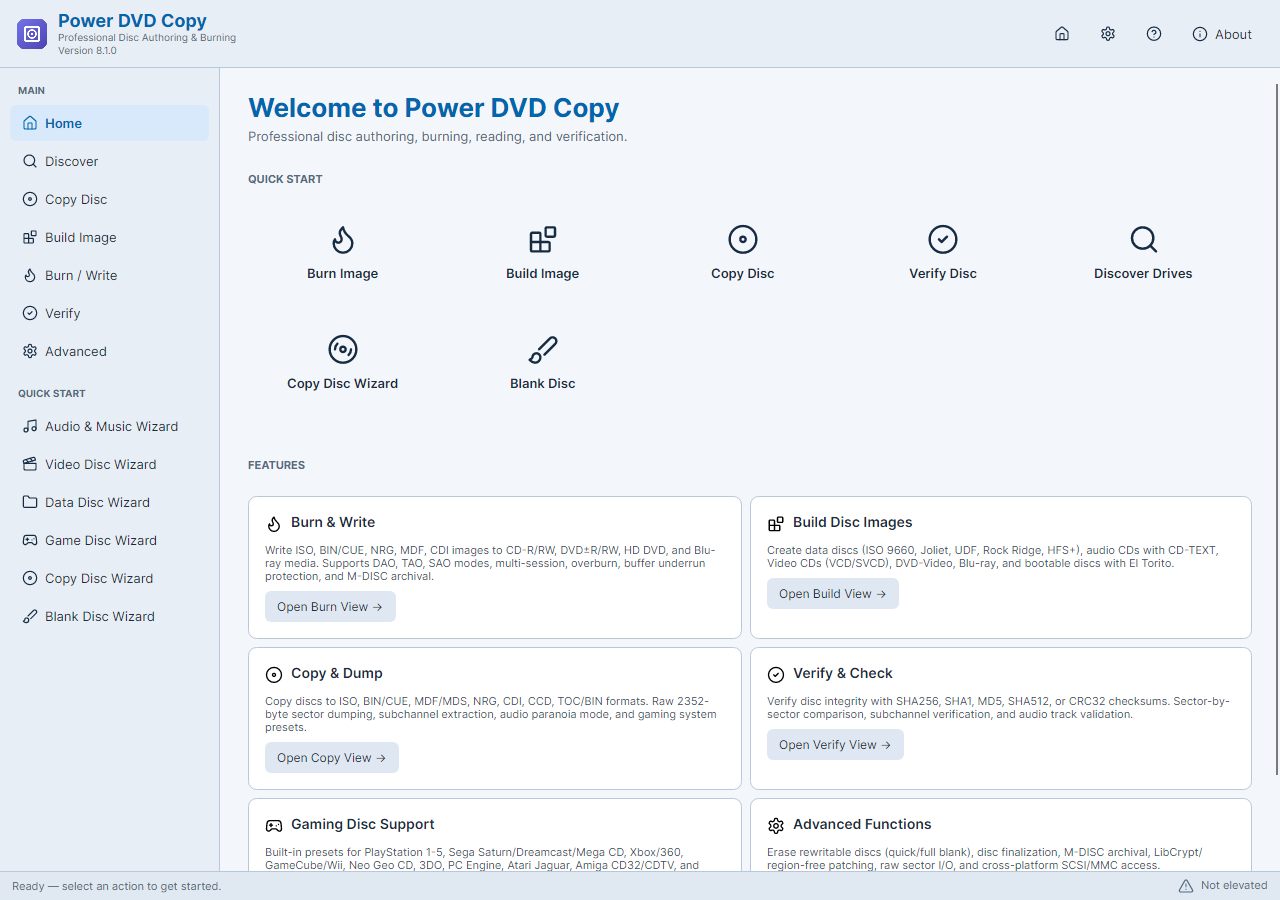
The Copy Disc Wizard produces an image, with format choices such as ISO where appropriate. It does not turn a DVD title into MP4. To make another physical disc, use the resulting image in the write workflow with a compatible burner and suitable blank media.
This workflow does not remove movie-disc encryption. Use a readable, unprotected disc; protected or damaged discs may fail to copy.
Step-By-Step Instructions
- 1
Select the source drive
Open Copy Disc Wizard and choose the optical drive containing your DVD. Refresh the drive list if necessary and confirm the detected medium.
- 2
Choose the image format and folder
Review Output Settings, select a suitable format and output path, and enable Verify after copy. Keep enough free space for the entire image.
- 3
Copy and verify the image
Start copying and read the final result. Keep the source disc until you have checked the saved image and any physical copy made from it.
Common Questions
Can I copy a DVD with one drive?
Yes. Read the original into an image first. A separate write operation can then use the same compatible drive with a blank disc.
Will the copy be a smaller MP4?
No. An image preserves disc structure. Video transcoding to a smaller media file is a separate task.